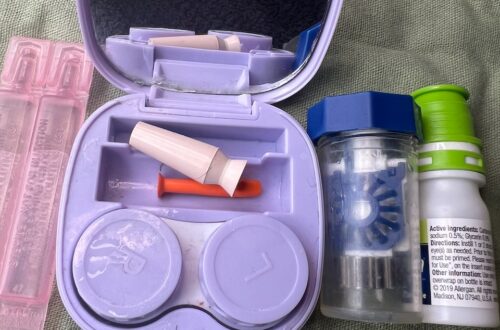
How to Tell if Something Is FSA/HSA Eligible on Amazon
Shopping with FSA or HSA funds on Amazon is pretty easy once you know what to look for—but Amazon doesn’t always put the eligibility information in the same place.
Sometimes you’ll see “FSA or HSA eligible” right in the search results. Other times it appears on the product page or in your cart. And at checkout, Amazon can even tell you exactly how much of your order is eligible.
Here’s how I check whether something is FSA/HSA eligible on Amazon, both on desktop and in the Amazon app.
This post may contain Amazon affiliate links. As an Amazon Associate, I earn from qualifying purchases.
The Quick Answer: Look for “FSA or HSA Eligible”
The easiest way to check an item on Amazon is to look for the words:
FSA or HSA eligible
Amazon displays this label on qualifying listings, although where you see it can vary depending on whether you’re shopping on desktop or in the mobile app.
And that distinction matters. Just because something seems like it should qualify—or even has FSA/HSA language printed on the packaging—I still look for Amazon’s eligibility designation on the actual listing I’m purchasing.
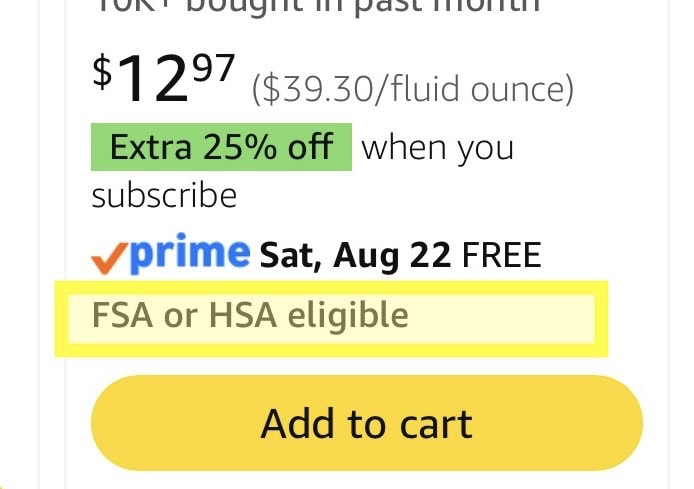
How to Find FSA/HSA Eligible Items in the Amazon App
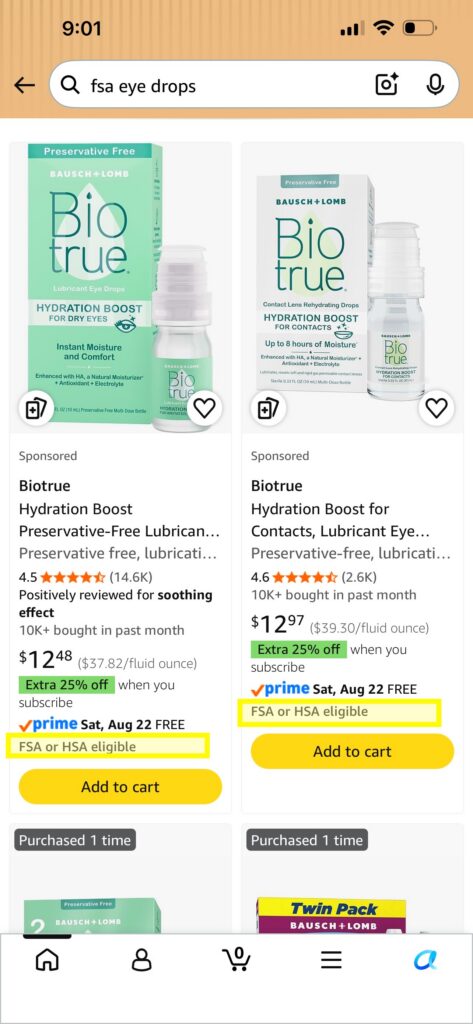
One of the easiest ways to start is simply to include FSA in your Amazon search.
For example, I searched for “FSA eye drops.” Amazon returned multiple products with “FSA or HSA eligible” displayed directly in the search results.
That makes browsing much easier because you don’t necessarily have to open every product page just to see whether it qualifies.
However, pay attention to the specific product and variation you’re buying. If you change the size, quantity, seller or version, I would check the eligibility information again rather than assuming every option qualifies.
You Can Also Check Eligibility in Your Amazon Cart
Once I added products to my cart in the Amazon app, Amazon displayed “FSA or HSA eligible” underneath an eligible item.
This is actually one of my favorite places to double-check before checking out.
And here’s an interesting example from my own cart: Amazon showed the eligibility label underneath one set of eye drops, while another product in the same cart didn’t show the label in that particular view—even though the product packaging itself included FSA/HSA wording.
That’s why I don’t rely solely on the packaging or product photo. I look for Amazon’s eligibility information and ultimately verify the eligible amount at checkout.

How to Check FSA/HSA Eligibility on Amazon Desktop

Amazon’s desktop site gives you several opportunities to check.
In search results, eligible products may have “FSA or HSA eligible” displayed right on the product card.
You can see in this example that some eye drops are clearly marked as eligible while another product in the same search results isn’t displaying the designation.
Again, don’t assume that every similar product qualifies simply because some of them do.
Check the Amazon Product Page Too

On an individual Amazon product page, the eligibility information can be surprisingly easy to miss.
In my example, “FSA or HSA eligible” appears in the purchase section on the right side of the desktop page, underneath the other buying information.
If you’re not specifically looking for it, you could scroll right past it.
So if you’re wondering whether a particular Amazon item is FSA/HSA eligible, I would check the individual listing—not just the search results.
What If You Already Put the Item in Your Cart?
Amazon may also identify eligible products in your shopping cart.
Here’s an example from my desktop cart:


The Optase eye drops are explicitly labeled “FSA or HSA eligible.”
This gives you another opportunity to verify your purchase before moving on to checkout.
But the most useful confirmation, in my opinion, happens on the next screen.
Amazon Shows How Much of Your Order Is FSA/HSA Eligible at Checkout

This is the part I really like.
If you have an FSA or HSA card added to your Amazon account, Amazon can calculate the eligible portion of your order during checkout.
In my example, Amazon displayed:
“$16.01 of your order is eligible.”
So instead of trying to do the math yourself when your cart contains different types of products, you can see the eligible amount Amazon has identified.
You can then choose your FSA/HSA card as the payment method for that eligible amount.
One important thing I’ve noticed from using this myself: Amazon doesn’t necessarily automatically choose your FSA/HSA card just because your order contains an eligible product.
I still check the payment method before placing the order.
What If Your Amazon Cart Has Both Eligible and Non-Eligible Items?
You don’t necessarily need to place completely separate Amazon orders.
If your cart contains a mixture of products, Amazon can identify the amount of the order that is FSA/HSA eligible at checkout.
For example, if you had $50 worth of products in your cart but Amazon identified $20 as FSA/HSA eligible, you could use your FSA/HSA card toward that eligible portion and another payment method for the remainder.
This is another reason I like checking the final checkout screen rather than relying only on what I saw while browsing.
What If You Don’t See “FSA or HSA Eligible”?
I wouldn’t assume an item qualifies just because it looks similar to another eligible product.
Instead, I would:
- Check the individual product listing for the eligibility label.
- Make sure you’re looking at the exact size or variation you intend to buy.
- Add the item to your cart and check again.
- Review the eligible amount Amazon displays during checkout.
- If eligibility is still unclear, check your FSA/HSA plan rules before purchasing with your account funds.
Amazon’s designation is extremely useful for shopping, but your own plan administrator is the appropriate source for questions about what your particular plan will reimburse or cover.
Already Have an FSA or HSA Card? Add It to Amazon
Finding an eligible product is only half of the process.
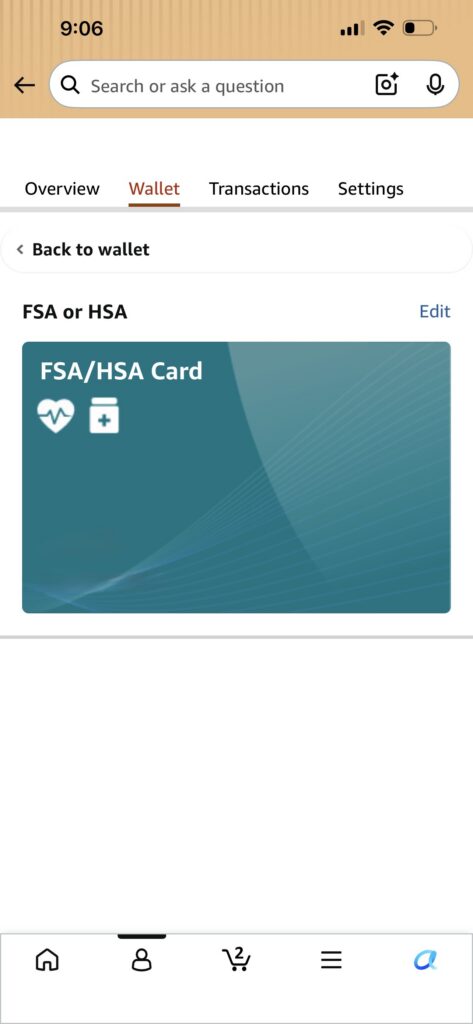
You can also save your FSA/HSA card in your Amazon Wallet. Once it’s there, Amazon can offer it as a payment option when your order contains eligible products.
I have a separate step-by-step guide showing exactly how I do this:
That guide also covers some of the common problems you can run into when trying to use the card at checkout.
Trying to use your HSA or FSA on Amazon? Here’s how to shop eligible items, avoid getting denied, and make the most of your benefits.
Can You Search Amazon Specifically for FSA/HSA Products?
Yes. One simple option is to add terms such as “FSA” to your Amazon search.
For example, searching “FSA eye drops” brought up eligible products for me, with the eligibility designation visible right in the results.
Amazon also has FSA/HSA shopping sections, but regardless of how I find a product, I still check the specific listing before purchasing.

A Few Things I Check Before Buying
My process is pretty simple:
Search → Look for the eligibility label → Check the exact listing → Add it to my cart → Confirm the eligible amount at checkout.
It takes only a few extra seconds, and I would much rather verify an item before ordering than discover later that I used the wrong payment method or bought a version that wasn’t eligible.
More FSA/HSA Shopping Help
If you’re shopping with FSA/HSA funds on Amazon, you may also want to read:
Trying to use your HSA or FSA on Amazon? Here’s how to shop eligible items, avoid getting denied, and make the most of your benefits.

Don’t waste your FSA funds on random products. These skincare picks are actually worth it—from acne treatments to everyday SPF you’ll want to use.
FSA and HSA funds don’t have to be boring! These Amazon finds are shockingly eligible — think red light masks, posture correctors, acne treatments, and more!

Scleral lenses have a learning curve, but the daily routine becomes much easier with practice. Here is how I insert, remove and care for mine, along with the supplies that help make the process more manageable.
Lisa Thompson
 Hi, I'm Lisa, a software engineer, photographer, and creator behind Redcypress Designs. I share practical home solutions, beginner-friendly juicing tips, cozy living ideas, Pinterest experiments, and products that solve real everyday problems. Most of the projects, recipes, and reviews on this site come from my own experiences, testing, and occasional mistakes.
You May Also Like
FSA Eligible Eye Massager for Migraines & Dry Eyes (Heat + Cooling Review)
How to Use an LED Face Mask at Home (A Beginner’s Guide)