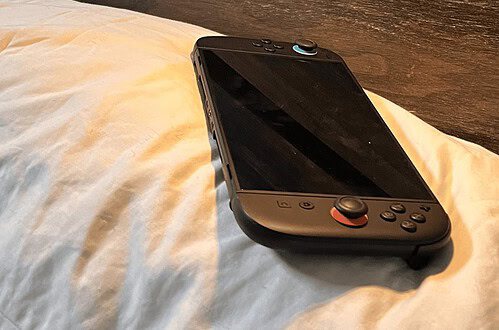
Nintendo Switch Docked Mode Essentials: My Cozy TV Setup
This guide includes docked-mode accessories for the original Nintendo Switch, Switch OLED, and Nintendo Switch 2. Docks, power adapters, controllers, cameras, storage cards, and video features are not always interchangeable, so I’ve clearly labeled which system each product works with.
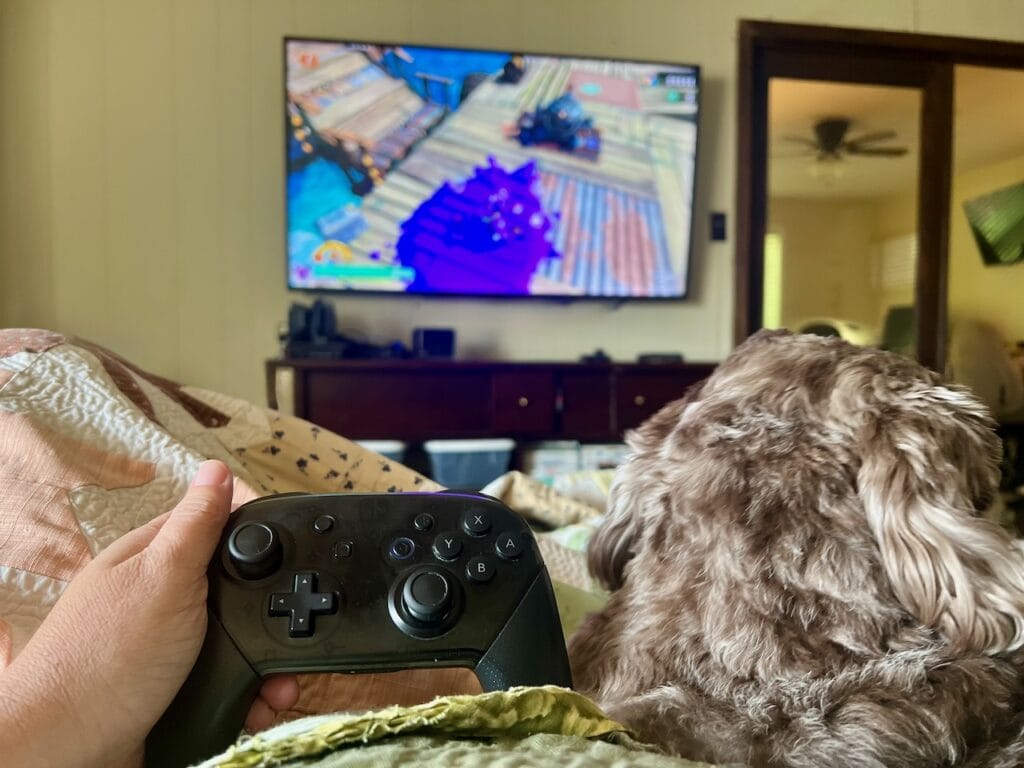
Playing Nintendo Switch on the TV is my favorite way to settle in for a longer gaming session. The larger screen makes cozy worlds feel more immersive, multiplayer games are easier to share, and I can play from an actual comfortable chair instead of slowly turning myself into a question mark over a handheld console.
You do not need an elaborate gaming room to create a good docked setup. A dependable dock, comfortable controller, enough storage, and a few cozy extras can make playing on the TV feel much easier.
Check out my cozy gaming night setup here
Below are the Nintendo Switch docked-mode essentials I would prioritize, with compatibility notes for both the original Switch family and Nintendo Switch 2.
Before You Play: My Five-Minute Docked Setup Check
- Place drinks somewhere they cannot meet the console in a tragic plot twist.
- Make sure the dock is connected to its correct power adapter.
- Check that the HDMI cable is securely connected to the television.
- Charge or connect your controller.
- Select the correct television input.
- Confirm that the console has enough storage for updates.
- Keep the dock vents clear.
What Is Nintendo Switch TV Mode?
When your Nintendo Switch is placed in the dock and connected to your television, you’re using TV mode, often called docked mode. If you play primarily from the couch instead of handheld, the right controller, storage, display, and a few comfort upgrades can make the setup much nicer to use.
The Right Dock and Power Adapter
The dock is the foundation of a TV setup, but this is one product category where compatibility matters. The original Nintendo Switch and Nintendo Switch OLED use their corresponding Switch dock and power adapter, while Nintendo Switch 2 uses its own dedicated dock and higher-output adapter.
The safest setup is the official dock and adapter included with your console. A compact third-party dock can be useful for a second room or travel, but I would only choose one that clearly lists compatibility with your exact Switch model.

Nintendo Switch 2 Dock

SIWIQU TV Dock Station for Nintendo Switch/Switch OLED

Mirabox 65W Portable Dock Charger
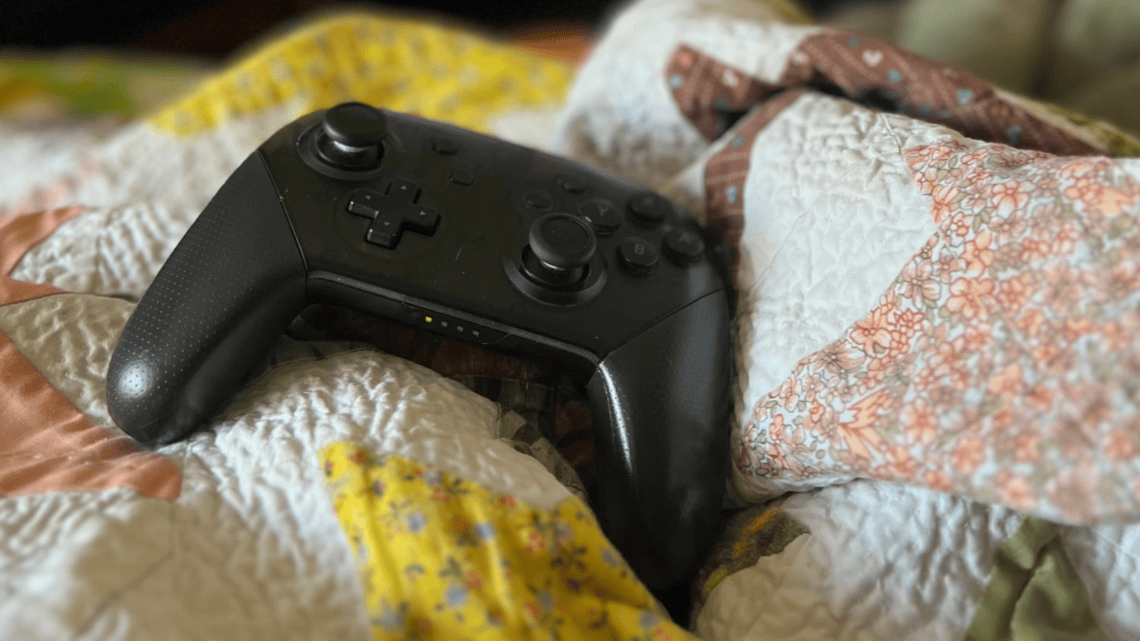
Controllers for Docked Nintendo Switch Gaming
Wired Controller
A wired controller is a practical budget-friendly option for a setup where you sit reasonably close to the television. You do not have to remember to charge it, and it is easy to keep connected for spontaneous gaming nights.
Wireless Controller
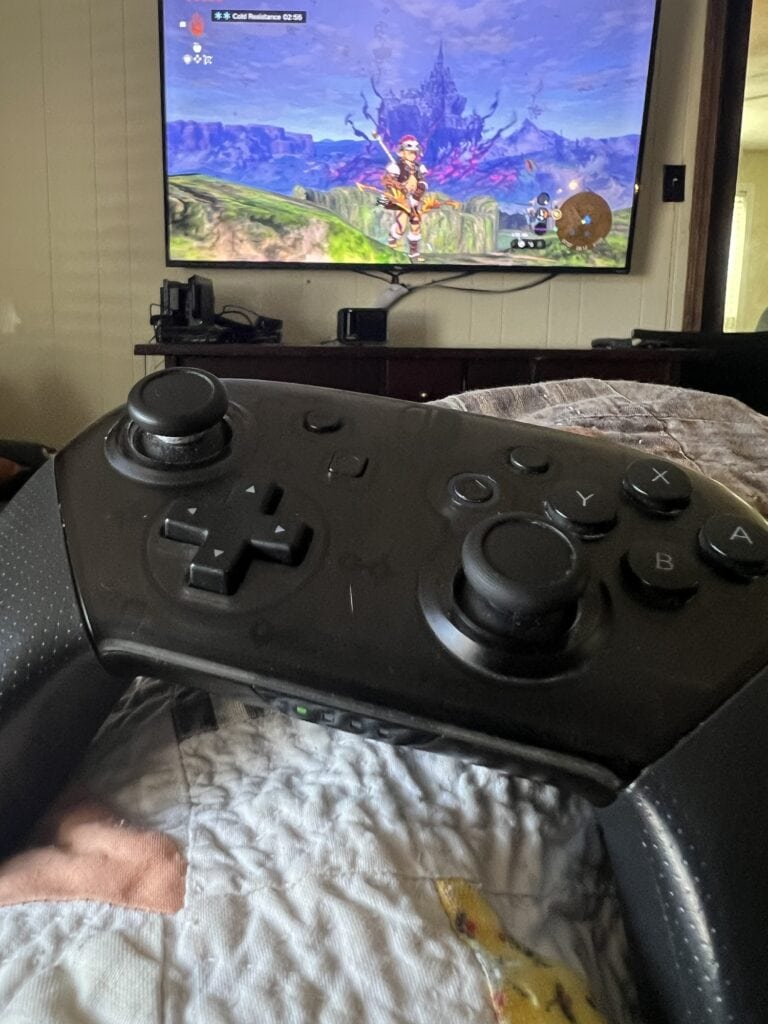
A wireless controller is the better choice when your favorite chair is across the room or you prefer a cleaner setup without cables stretching toward the television.
It’s lightweight, comfortable, and works well for long play sessions without hand fatigue.
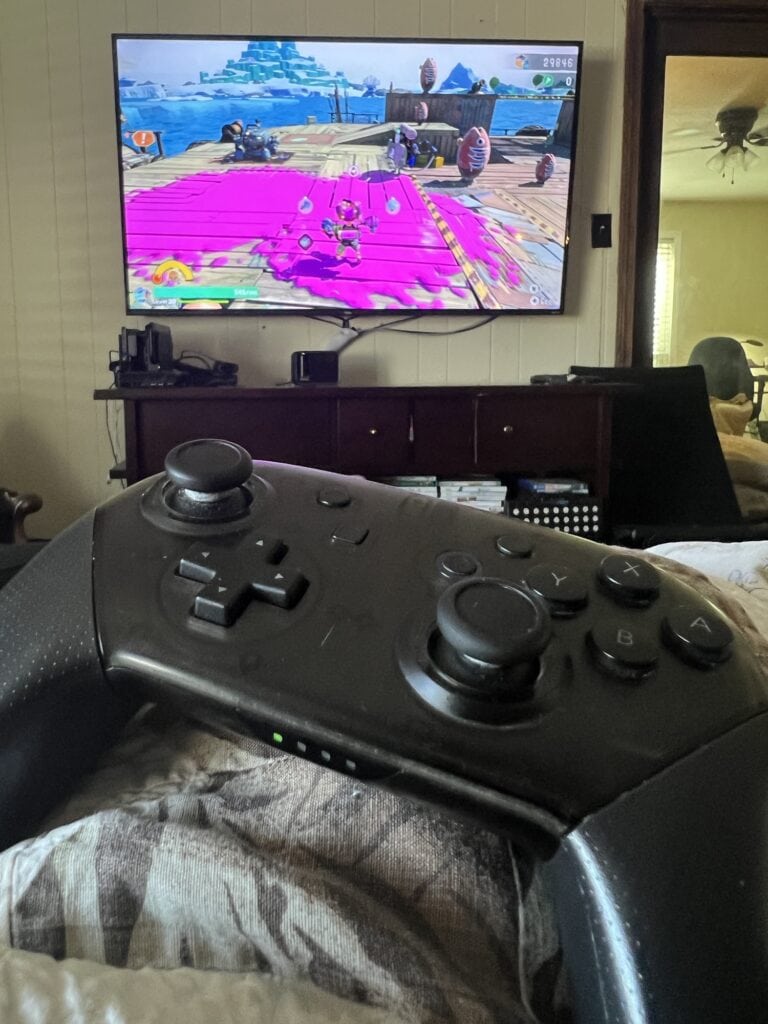
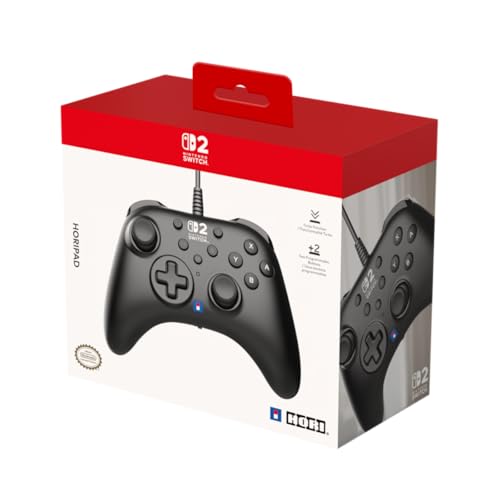
HORIPAD Turbo (Black) for Nintendo Switch
It gives you a familiar full-size controller without relying on attached Joy-Cons for every TV session.

Switch Controllers 2 Pack with Charging Dock for Nintendo Switch/Switch 2/Lite/OLED, Wireless Switch 2 Pro Controller
Product Features
MicroSD Storage for Nintendo Switch and Switch 2
A microSD card gives you extra room for downloaded games, updates, screenshots, and videos, but the type of card you need depends on which Nintendo Switch console you own. The cards used by the original Switch family are not the same as the cards required for Nintendo Switch 2.
Nintendo Switch, Switch Lite, and Switch OLED
The original Nintendo Switch, Nintendo Switch Lite, and Nintendo Switch OLED use standard microSD cards, including:
- microSD
- microSDHC
- microSDXC
For most players, a microSDXC card is the most practical choice because it offers more storage for digital games. A 256GB card is a good starting point for a moderate game library, while 512GB or more may be better if you download most of your games.
When shopping, look for a reputable brand and confirm that the card is compatible with the original Nintendo Switch family. Nintendo-licensed microSDXC cards work with these consoles, but they are not compatible with Nintendo Switch 2. (Nintendo)

Nintendo Switch 2
Nintendo Switch 2 requires a microSD Express card. A regular microSD, microSDHC, or microSDXC card cannot be used to store or play Switch 2 games, even when it worked perfectly in an older Switch. Nintendo says Switch 2 supports microSD Express cards with capacities of up to 2TB. (Nintendo Support)
When shopping, look for the words microSD Express or the “EX” symbol on the card. This is the easiest way to avoid accidentally ordering a standard microSD card.

Can You Move an Old Switch microSD Card to Switch 2?
Your standard Switch microSD card does not become a Switch 2 storage card. Nintendo allows you to temporarily insert an older Switch microSD card into Switch 2 to import saved screenshots and videos, but you still need a microSD Express card for ongoing Switch 2 storage. (Nintendo Support)
Quick Compatibility Guide
| Console | Storage card needed |
|---|---|
| Nintendo Switch, Nintendo Switch Lite, Nintendo Switch OLED | Standard microSD, microSDHC, or microSDXC |
| Nintendo Switch 2 | microSD Express only |
Before ordering, double-check both the card type and the console named in the product listing. The cards look very similar, and this is one accessory where clicking too quickly can leave you with a tiny, expensive piece of plastic your console cannot use.
TV for Nintendo Switch Docked Mode
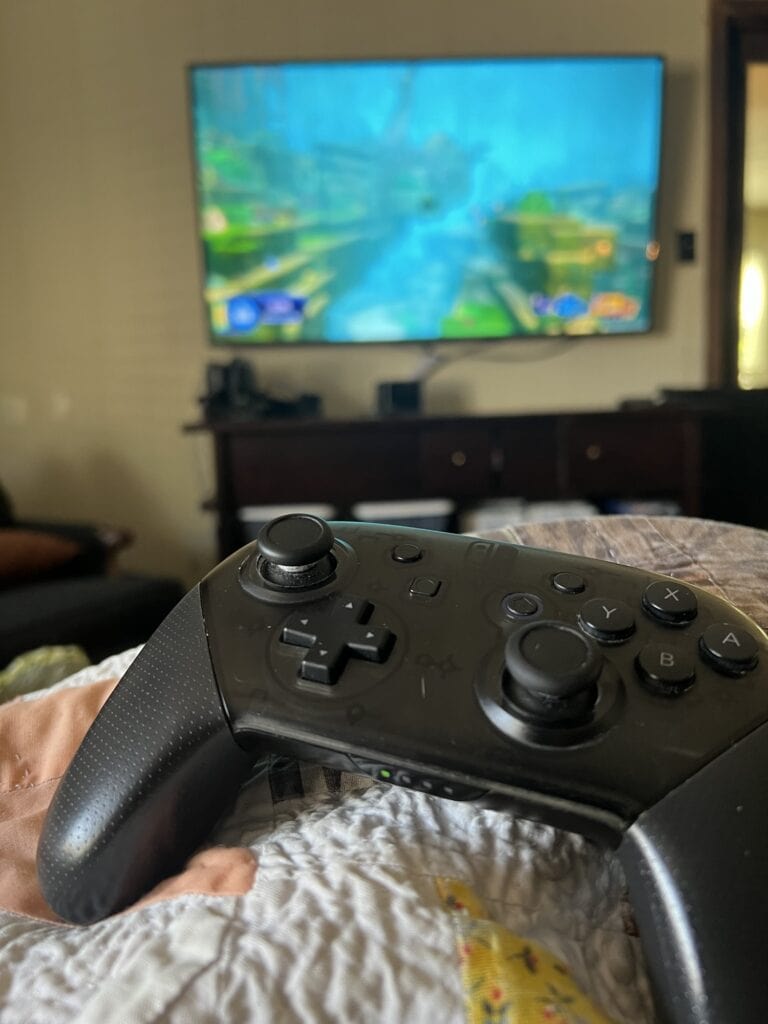
If you’re playing docked most of the time, the TV matters more than almost anything else. An OLED screen makes Switch games look noticeably better — richer colors, deep blacks, and less blur during motion.
Why it’s great:
- Excellent color and contrast
- Wide viewing angles (perfect for multiplayer)
- Smooth motion for games and cutscenes
Good to know:
This is a splurge item. If you already have a decent TV, you don’t need to upgrade just for the Switch — but if you’re already shopping, it’s a fantastic choice.

More Cozy Gaming Articles & Guides

More Practical Guides & Ideas


Nintendo Switch 2 Camera for GameChat
The camera feels random in the current controller table because there is no explanation. Give it its own section:
The Nintendo Switch 2 camera is not a general docked-mode essential, but it can be a fun addition if you use GameChat with friends or family. A compatible USB-C camera lets you add video while playing, and up to four people can appear on video at once.
Best for: Families, long-distance friends, and multiplayer gaming nights
Compatible with: Nintendo Switch 2
Skip it if: You do not plan to use video chat

HORI USB Camera for Nintendo Switch 2
Comfort Accessories for Couch Gaming
Perfect for cozy gaming nights when you don’t want to sit upright at a desk.
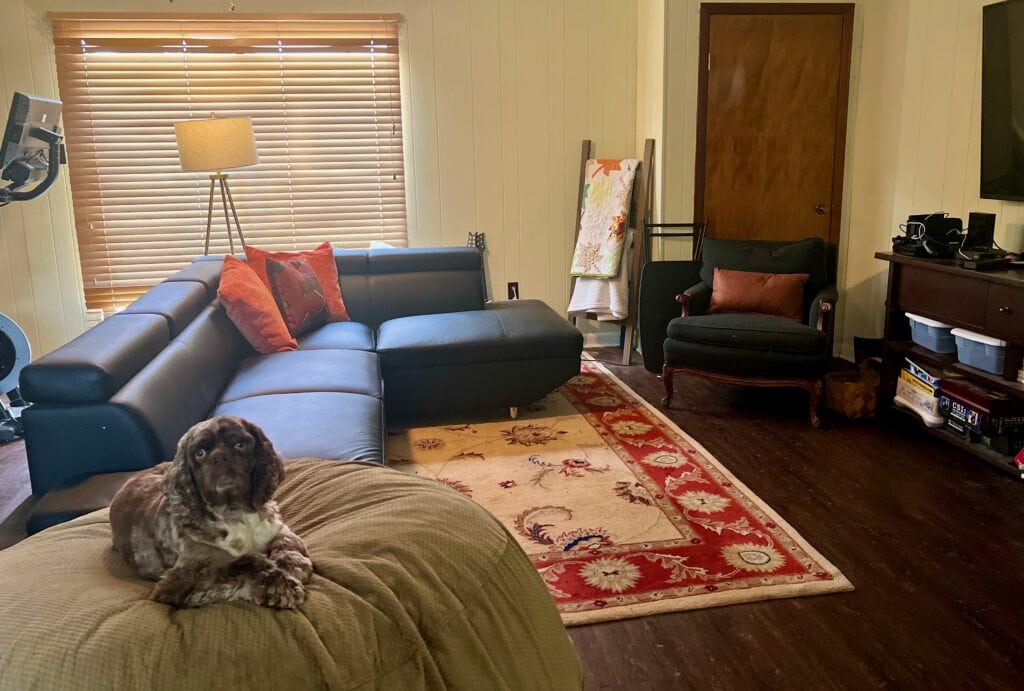
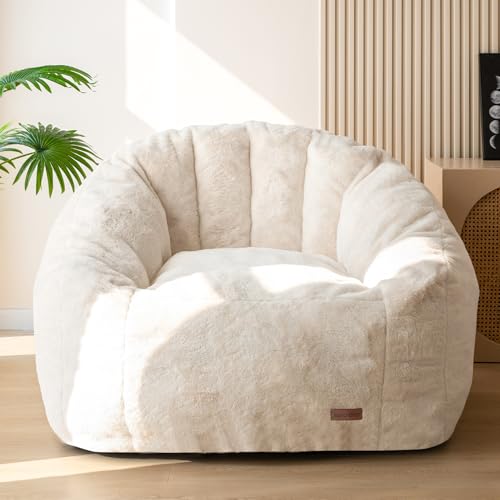
Giant Bean Bag Chair
A large bean bag works well for casual gaming nights, extra seating, or anyone who likes to disappear into a soft fabric cloud while harvesting digital crops.

Supportive Chair
A supportive chair makes a bigger difference than another decorative gaming gadget. This is the better option for longer sessions when you want back support and a room that still feels like a living room.
Power & Cable Management (Unsexy but Important)
This isn’t exciting, but it’s one of those “glad I bought this” items.

Surge Protector Power Strip
Docked setups tend to grow — Switch dock, TV, soundbar, chargers, maybe a streaming device. A surge protector helps protect your gear and keep cords manageable.
Optional Extras Worth Considering
These aren’t required, but can be nice upgrades depending on your setup:

Soundbar
Product Features
How to Choose the Right Docked Accessories (Without Overbuying)
Before adding everything to your cart, ask yourself:
- Do I play mostly solo or multiplayer?
- Is comfort or visuals more important to me?
- Am I mostly digital or physical games?
- Do I want a minimal setup or a cozy one?
Start with one or two upgrades that solve your biggest annoyance. You can always build from there.

From a LEGO Game Boy to a little pixelated Link, my Amazon Idea List is full of Nintendo finds I’d happily make room for. Here are my favorites, along with ideas for displaying them around your home.
Final Thoughts
A good docked Nintendo Switch setup does not need to look like a full gaming studio. Start with the accessories that remove the little annoyances: a dependable dock, the correct power adapter, a controller that feels comfortable, and enough storage for the games you actually play.
From there, add the cozy pieces that make you want to stay awhile—a comfortable chair, soft lighting, a blanket, and perhaps a snack within responsible controller-safe distance.
Whether you are using the original Nintendo Switch, Switch OLED, or Switch 2, the best setup is the one that makes it easy to sit down, connect, and play.
📌 Disclosure
Some links in this post may be affiliate links. This means I may earn a small commission at no extra cost to you.
As an Amazon Associate, I earn from qualifying purchases.
Lisa Thompson
 Hi, I'm Lisa, a software engineer, photographer, and creator behind Redcypress Designs. I share practical home solutions, beginner-friendly juicing tips, cozy living ideas, Pinterest experiments, and products that solve real everyday problems. Most of the projects, recipes, and reviews on this site come from my own experiences, testing, and occasional mistakes.
You May Also Like

My Cozy Gaming Night In: What I Play, What I Eat, and What Makes It Feel So Relaxing

Cozy Puzzle Adventure Games That Reward Your Curiosity