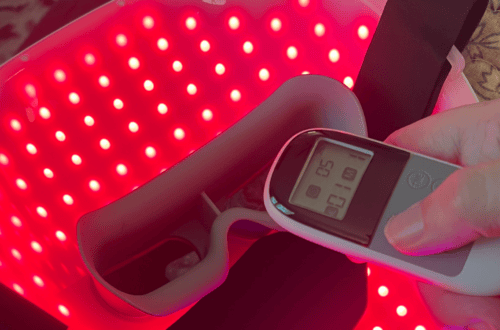
How to Add Your HSA or FSA Card to Amazon (Plus Common Fixes)
If you’re trying to figure out how to add your HSA or FSA card to Amazon, you’re in the right place.
If you’ve ever stared at your FSA or HSA balance wondering if it’s destined for yet another bottle of ibuprofen, let me stop you right there: you can use that money for some seriously cool stuff—on Amazon.
Amazon FSA or HSA Card Not Working? Try These First
If your HSA or FSA card isn’t working on Amazon, check these common issues before contacting customer support:
- ✓ Make sure the item is labeled FSA/HSA Eligible.
- ✓ Add a backup payment method. Amazon often requires one for non-eligible items, taxes, or shipping.
- ✓ Check that your billing address matches the one on file with your benefits provider.
- ✓ Verify you still have available FSA or HSA funds.
- ✓ If your cart contains both eligible and non-eligible items, Amazon may split the payment automatically.
If none of those solve the problem, keep reading—we’ll walk through each one.
Quick heads-up: Adding your HSA or FSA card to Amazon isn’t enough by itself. If it’s not set up correctly, eligible items will still show as “not covered.” This guide walks through the exact steps to fix that.
But here’s the thing: even though Amazon makes it seem easy, there are a few gotchas that can turn your stress-free shopping trip into a “why was my card declined?” situation. If your card behaves differently than expected — especially early in the year — it often comes down to how FSAs and HSAs make funds available.
So let’s break it down: how to shop with your HSA or FSA on Amazon without the drama—and with all the cozy tech your wellness-loving heart desires. If you’re looking for actual FSA-eligible wellness tools to use once your card is set up, I keep an updated list here.
Once your HSA or FSA card is added, Amazon has amazing HSA / FSA items including tech products, self-care items, and everyday health essentials you might not expect.
💳 How to Add Your HSA or FSA Card to Amazon
Go to Amazon’s Your Payments.
Click “Add a payment method.”
Choose Credit or Debit Card, and enter your HSA or FSA card details.
- Save and confirm.
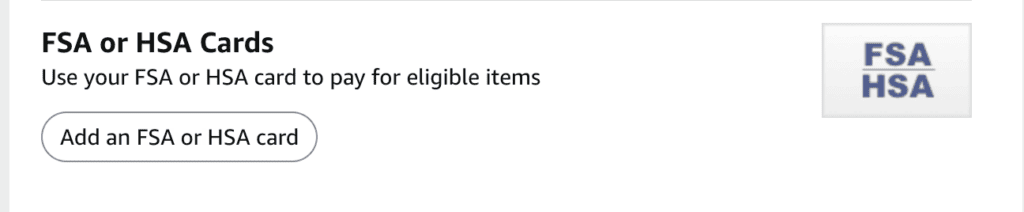
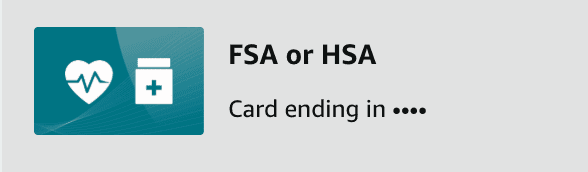
📝 Tip: You may want to name the card “FSA” or “HSA” so you remember which one to use at checkout.
How to Shop with Your HSA/FSA on Amazon
Step 1: Use the HSA/FSA Storefront
Amazon has an entire section dedicated to eligible products:
🔗 Visit the Amazon HSA/FSA Store
You can filter by category (pain relief, feminine care, baby, wellness tech, etc.) and look for the little “FSA/HSA Eligible” tag.
Step 2: Add Your FSA/HSA Card to Amazon
Go to: Account > Your Payments > Add a Payment Method
Use your FSA or HSA debit card just like a normal credit card. If your plan doesn’t issue a separate card, you’ll have to buy with your regular card and submit a receipt for reimbursement (we’ll cover that below).
After adding your HSA or FSA card, it will appear as one of your available payment methods. Just remember—you’ll still need to select it during checkout before placing your order.
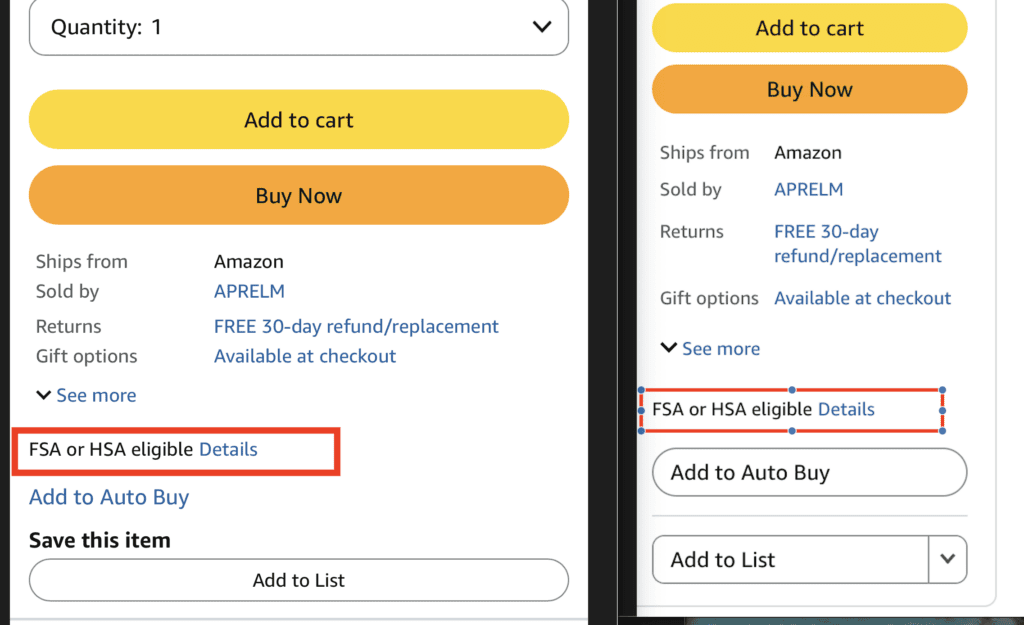
Step 3: Check the Eligibility Label
Not every wellness item on Amazon is eligible—even if it feels like it should be. Look for:
“FSA/HSA Eligible” next to the price or “FSA or HSA eligible item, may require a Letter of Medical Necessity (LMN)”
If it’s not clearly marked, assume you’ll need to check with your plan or keep documentation for reimbursement.
Real-Life FSA-Eligible Items I Use
Beyond the basics, I’ve also shared real-life examples of FSA-eligible items I actually use — including a wrist blood pressure monitor that’s much more comfortable than traditional arm cuffs, and a roundup of surprising FSA finds you might not expect.
Why Isn’t My HSA Card Working on Amazon?
An HSA or FSA card can fail on Amazon even when the item is eligible. Common reasons include Amazon not automatically selecting the benefits card at checkout, part of the order being ineligible, the card issuer declining the transaction, or the card not being added correctly as a payment method.
Troubleshooting Guide:
| Problem | Most Likely Cause | Fix |
|---|---|---|
| Card declined | Item isn’t eligible | Check for the eligibility badge |
| Card missing | Payment method wasn’t added correctly | Re-add the card |
| Only part of order paid | Mixed eligible and non-eligible items | Amazon splits the payment |
| Charged backup card | Shipping, tax, or ineligible items | Review the order summary |
| Need reimbursement | No HSA/FSA card issued | Pay normally and submit the receipt |
What Even Is an HSA or FSA?
Quick refresher in case the acronyms still sound like alphabet soup:
HSA (Health Savings Account): Linked to a high-deductible health plan. The money rolls over year to year, and it’s yours forever.
FSA (Flexible Spending Account): Use-it-or-lose-it style. Typically tied to your employer, and most of the balance expires at year’s end (though some plans offer a short grace period or small rollover).
Both accounts let you buy qualified health-related products with pre-tax money. Basically, you’re saving up to 30% just by using them right. If you’re using an HSA instead of an FSA, they behave differently — here’s a short explanation of why.
Related Read: Why FSAs and HSAs work differently
Need help figuring out which products are FSA/HSA Eligibe?
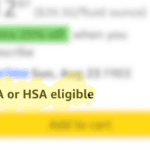
Not sure if something is FSA/HSA eligible on Amazon? I’ll show you exactly where to look on desktop and in the Amazon app, plus how to check how much of your order is eligible before you pay.
Important: Amazon Doesn’t Automatically Select Your HSA/FSA Card
Even if you’ve already added your HSA or FSA card to your Amazon account, Amazon may not automatically select it during checkout.
If your cart contains eligible products, Amazon will usually recognize the eligible amount and make your HSA/FSA card available as a payment option. Before placing your order, check the Payment Method section and make sure your HSA/FSA card is actually selected.
In my case, Amazon recognized that $25.40 of my order was HSA/FSA eligible, but I still had to manually select my HSA/FSA card before placing the order. If I hadn’t, my default payment method would have been charged instead.
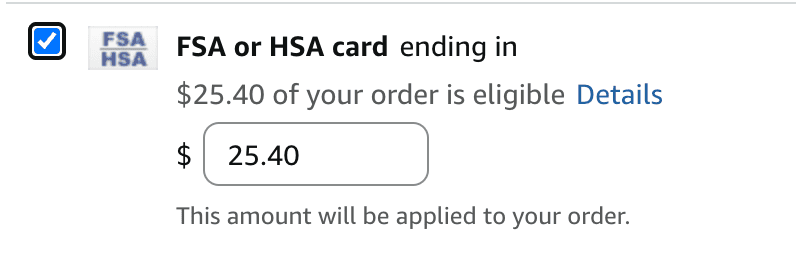
Notice that Amazon says “$25.40 of your order is eligible.” If your cart contains both eligible and non-eligible products, Amazon will only charge your HSA/FSA card for the eligible portion. Any remaining balance will be charged to your backup payment method.
Wait, What’s This “Letter of Medical Necessity” Thing?
Some higher-end items—like light therapy lamps, massage guns, or posture trainers—might require a Letter of Medical Necessity (aka an LMN).
That’s a fancy way of saying your doctor agrees that the item is part of your treatment plan. It’s usually a quick form or note and looks like this:
“Patient is experiencing chronic neck pain. Recommending heated massage pillow for at-home use.”
If you’re unsure, call your benefits provider and ask if your item needs an LMN to be approved. (And yes, you can still buy it on Amazon in the meantime—just save the receipt and be ready to submit documentation.)
What If I Want to Get Reimbursed?
No FSA card? No problem.
- Use your regular credit card to buy the eligible item.
- Save your receipt (Amazon makes this easy—print it or download it from your orders).
- Log into your FSA/HSA provider’s portal and file a claim.
- Upload the receipt and LMN if required.
Most reimbursements are issued in a few business days. It’s like a cash-back program but for your healthier self.
FAQs
Why isn’t my HSA or FSA card working on Amazon?
This usually happens if the item in your cart isn’t HSA/FSA eligible, your billing address doesn’t match your card records, or Amazon requires a backup payment method for non-eligible items.
Do I need to add a backup credit or debit card?
Yes. Amazon often requires a secondary payment method in case part of your order isn’t HSA/FSA eligible or if taxes or shipping fees can’t be covered by your HSA/FSA card.
What address do I use for Amazon on an HSA/FSA reimbursement claim?
If your HSA or FSA reimbursement form asks for a merchant address, check the invoice or receipt for your Amazon order first. Orders sold by third-party sellers may list that seller’s information rather than Amazon’s. If your form specifically requires an address and your receipt doesn’t provide what you need, check with your HSA/FSA administrator before submitting the claim.
Why does Amazon say my FSA card is “unrestricted”?
Amazon may describe your card as unrestricted when it cannot automatically identify it as a benefits card with spending controls. This does not mean you can use FSA money for anything on Amazon. You are still responsible for using the account only for qualified medical expenses.
Look for the FSA/HSA Eligible label before purchasing. If Amazon will not accept the card directly, you may be able to pay with a regular card, save the itemized receipt, and request reimbursement through your benefits administrator.
Can I use my HSA card for Subscribe & Save?
You may be able to use an HSA or FSA card for a Subscribe & Save item when the product is currently marked FSA/HSA Eligible. However, Amazon reprocesses payment with every shipment, and eligibility, pricing or payment acceptance can change.
Keep a regular credit or debit card saved as a backup payment method and check future orders to make sure Amazon is still charging the correct card. A product being eligible today does not guarantee that every future shipment will process the same way.
Why did Amazon charge my regular credit card instead?
Amazon may charge your regular card when part of the order is not FSA/HSA eligible, your benefits card is declined, your available balance is too low or a backup payment method is required.
Review the order’s payment details to see which items were charged to each card. If an eligible product was charged to your regular card, save the itemized receipt. You may still be able to submit the purchase to your FSA or HSA administrator for reimbursement.
Can I use multiple payment methods?
Amazon can separate a mixed order between an FSA/HSA card and a backup credit or debit card. Eligible products may be charged to the benefits card while ineligible products and other uncovered amounts are charged to the backup card.
Amazon generally does not let shoppers manually divide an ordinary purchase between two regular credit or debit cards. The split happens because Amazon’s checkout system identifies which products qualify for FSA/HSA payment.
Amazon Pharmacy has separate payment rules and may not allow an HSA/FSA card to be combined with another payment method for the same prescription order.
Do Amazon gift cards work with FSA purchases?
An Amazon gift card is not an FSA or HSA payment method, and you cannot use FSA or HSA funds to purchase an Amazon gift card.
You can use an Amazon gift card to pay for an eligible medical product, but the purchase will not automatically come out of your FSA or HSA. To use your benefits, you would generally need to save the itemized receipt and request reimbursement from your plan administrator.
Amazon may automatically apply an available gift card balance before charging another saved payment method, so review the payment breakdown before placing the order.
Why does only part of my order qualify?
Amazon reviews the individual products in your cart rather than treating the entire order as one medical purchase. Your FSA or HSA card can only be charged for items Amazon recognizes as eligible.
For example, a first-aid kit may qualify while a regular moisturizer in the same cart does not. Different sizes, bundles and versions of the same product can also have different eligibility labels.
The remaining amount may be charged to your backup payment method. Review the final payment breakdown before submitting the order.
Does Amazon automatically separate eligible items?
Amazon can automatically separate eligible and ineligible products in the same order. The eligible portion is charged to your HSA or FSA card, while the remaining portion is charged to your backup payment method.
This is one reason Amazon may require you to keep another credit or debit card on file. Always review the checkout summary, though. A card decline, insufficient benefits balance or change in a product’s eligibility can cause Amazon to charge the backup card instead.
Why does Amazon split my order when I use an HSA or FSA card?
Amazon separates eligible and non-eligible items at checkout so your HSA/FSA card is only charged for approved purchases, with any remaining balance charged to your backup payment method.
Are all items labeled “HSA/FSA eligible” guaranteed to work?
Most eligible items work without issue, but eligibility can vary by plan provider. If your card is declined, check with your HSA/FSA administrator to confirm coverage.
What to Buy After You Add Your HSA or FSA Card
If you’re not sure where to start, these guides break down some of the most popular and surprising ways people use their HSA or FSA funds on Amazon:
- Wait—You Can Use Your FSA on That?! (everyday items people don’t expect)
- HSA/FSA Tech Products on Amazon (thermometers, monitors, wellness tech)
- FSA/HSA Self-Care Gadgets (massage tools, recovery, personal care)
- I’ve also shared real-life routines — like wearing scleral lenses — and how I use FSA-eligible tools as part of daily care.
🧠 Lisa’s Pro Tips
- Make a private Amazon list of eligible items so you can stock up at the end of the year (and avoid the “use it or lose it” panic).
- Snap a photo of every receipt, just in case your provider asks months later.
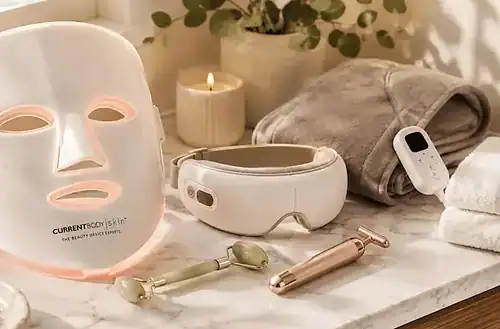
- Self-care counts: Think LED face masks, eye massagers, and Gua Sha tools. Need ideas? I’ve got a post for that
More Health Articles & Guides




More Practical Guides & Ideas


Final Thoughts
Using your HSA or FSA on Amazon doesn’t have to be complicated—it just takes a little know-how and a tiny bit of label reading. Whether you’re managing chronic conditions, restocking your medicine cabinet, or turning your living room into a mini spa, you might be able to cover it all with pre-tax money.
Now go forth and shop smarter. Just don’t forget to grab that receipt.
Important: Adding your HSA or FSA card to your Amazon account is only the first step. When you’re ready to check out, Amazon does not automatically switch to your HSA/FSA card just because your cart contains eligible products. You’ll need to select your HSA/FSA card as the payment method before placing your order. Otherwise, Amazon may charge your default payment method instead.
Disclaimer: This post contains affiliate links. As an Amazon Associate, I may earn from qualifying purchases at no extra cost to you.
Lisa Thompson
 Hi, I'm Lisa, a software engineer, photographer, and creator behind Redcypress Designs. I share practical home solutions, beginner-friendly juicing tips, cozy living ideas, Pinterest experiments, and products that solve real everyday problems. Most of the projects, recipes, and reviews on this site come from my own experiences, testing, and occasional mistakes.
You May Also Like

I’m Finally Starting to Take Care of My Skin — A Simple Routine
FSA Beauty & Wellness Devices That Are Actually Worth Buying