

How to Use the Amazon App in Canva
I didn’t realize how much time I was wasting… until I stopped doing things the hard way.
Trying to make product collages used to feel like:
- downloading images one by one
- cropping everything manually
- fighting Canva for no reason
And somehow it still didn’t look how I wanted.
Then I found a much easier way — using the Amazon app directly inside Canva — and it completely changed how I create collages.
Now I can put together clean, aesthetic product layouts in just a few minutes.
No chaos. No overthinking. No design degree required.
Want to See What This Looks Like?
Here’s one of my finished collages 👇
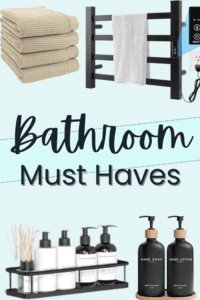
Shop this collage – may earn commission
What You Need (It’s Simple)
You don’t need anything fancy for this:
- Canva (free or Pro)
- The Amazon app integration inside Canva
- A general idea of what kind of collage you want to make
🛠️ How to Install and Use the Amazon App in Canva
1. Open a Canva Design
Start a design—Instagram post, Pinterest pin, blog header, whatever you need.
2. Click on ‘Apps’ in the Left Sidebar
On the left toolbar in Canva, scroll down and click “Apps” (it might be under “More”).
3. Search for “Amazon”
Type “Amazon” into the search bar. Look for the Amazon app by Canva—not a random third-party workaround.
4. Click “Connect” or “Use”
You may be prompted to log into your Amazon Influencer or Associate account to connect. Follow the steps.
5. Search for Products
Once connected, you can search Amazon’s catalog right from inside Canva. Type in keywords like “beach towel” or “Nintendo Switch dock”—whatever you’re featuring.
6. Add Products to Your Design
Click a product to view details, then drag and drop the image into your design.
Export the design to Amazon, you will be prompted to leave Canva. If you have more than one page make sure choose the current page.
🧠 Pro Tips for Using the Amazon App in Canva
- Avoid duplicate images. Try searching by specific ASIN or product name for more accurate results.
- Design for conversion. Use text overlays like “Amazon Favorite” or “Shop Now” to encourage clicks.
- Double-check affiliate links. Make sure you’re logged in and your ID is applied correctly to the link.
- Use with Canva folders. Save product mockups or grouped items into folders (e.g., “Summer Essentials”) for quick access.
💡 Ideas for Using It
- Create Amazon round-up pins for Pinterest.
- Design shoppable blog graphics with embedded links.
- Build a custom gift guide layout for your site or email list.
- Style vertical “Idea List” promos for Instagram stories.
🚫 What the Amazon App Can’t Do (Yet)
- It won’t pull in reviews or ratings (you’ll need to add those manually).
- Some products might not load correctly depending on region.
- You can’t edit the Amazon product images directly (but you can crop/mask them in your layout).
Want to Make It Even Easier? I Made a Free Template for That
If you’re thinking, “Okay, this is cool, but I still don’t want to build layouts from scratch every time”—I’ve got you.
I designed a free Canva template made specifically for Amazon Influencers using this new app. It’s cozy, clean, and ready for your product picks.
Click here to open the template in Canva
What’s Inside:
- Square format for storefront photos & Pinterest
- Space for 4 featured products
- “Room Must-Have” layouts (Kitchen, Bedroom, Bathroom)
- Cozy minimal style with bold titles
- Works great for blog graphics, pins, or social posts
Bonus: It pairs perfectly with the Amazon app. Just drag, drop, and done.
Why This Works So Well (and why I use it)
This is the part that made the biggest difference for me.
Instead of:
- juggling downloads
- resizing images
- dealing with messy layouts
You’re working directly inside Canva with everything in one place.
Which means:
- faster designs
- cleaner layouts
- way less frustration
And honestly? It just makes the whole process feel easy.
Collage Ideas You Can Try
If you’re not sure what to make, here are a few ideas I actually use:
- Cozy night in setup (blanket, snacks, games)
- Beach essentials
- Self-care / FSA items
- Dog favorites (Gizmo would approve 🐶)
- Home organization finds
These are great for:
- Pinterest pins
- Amazon idea lists
- blog content
How I Use This for Pinterest + Amazon
This is where it all comes together.
I use these collages to:
- create Pinterest pins
- link to blog posts
- connect to my Amazon idea lists
So instead of just making something pretty…
👉 I’m creating content that people can actually click, save, and shop.
My Simple Workflow
This is usually how I do it:
- Create a collage in Canva
- Turn it into a Pinterest pin
- Link it to a blog post or Amazon list
- Repeat (but faster each time)
Frequently Asked Questions
Why is the Amazon app not loading in Canva?
Sometimes it requires reauthorization or signing out and back in. Make sure you’re logged into the correct Amazon Associate account.
Can you use the Amazon app in Canva for affiliate links?
Yes, but you still need to follow Amazon’s affiliate disclosure policies and platform rules.
Does the Amazon app work for Pinterest?
Yes — but you should generate compliant affiliate links through your Associate account and follow Pinterest’s affiliate guidelines.
Final Thoughts
If you’ve been struggling to make product collages…
This is probably the easiest way to start.
It’s simple, fast, and actually fun once you get the hang of it.
And the best part?
You can turn something as simple as a collage into:
- content
- traffice
- and eventually… income
Lisa Thompson
 Hi, I'm Lisa, a software engineer, photographer, and creator behind Redcypress Designs. I share practical home solutions, beginner-friendly juicing tips, cozy living ideas, Pinterest experiments, and products that solve real everyday problems. Most of the projects, recipes, and reviews on this site come from my own experiences, testing, and occasional mistakes.

2 Comments
Ileane Smith
Thank you so much. These templates are great.
redcypress5246
Thanks!